


Highlight in scanned document?

Thread Starter

Joined: Oct 2006
Posts: 251
Likes: 0
From: Europe
Highlight in scanned document?
To back up something that I am trying to get the company to fix, one of the 'pieces of evidence' I am mailing is a scanned-in Passenger Information List.
To make blindingly clear what it is I have been fruitlessly explaining for a few months now, I would like to highlight certain lines on the scanned-in PIL.
I have scanned it to Word, can't figure out how to highlight.
Is there a way in Word, or should I perhaps scan it to another prog?
Any suggestions gratefully recieved.
To make blindingly clear what it is I have been fruitlessly explaining for a few months now, I would like to highlight certain lines on the scanned-in PIL.
I have scanned it to Word, can't figure out how to highlight.
Is there a way in Word, or should I perhaps scan it to another prog?
Any suggestions gratefully recieved.

Official PPRuNe Chaplain
Joined: Apr 2001
Posts: 3,498
Likes: 0
From: Witnesham, Suffolk
If it's text in Word, rather than a "photograph" of the text, then just select the bit you want and click on the little "B" in the editing toolbar.
If it's a pic, I don't think you can without getting clever with Photoshop.
If it's a pic, I don't think you can without getting clever with Photoshop.
Cleverly disguised as a responsible adult
Joined: May 2007
Posts: 1,117
Likes: 0
From: On the western edge of The Moor
The version of word we have here has a highlight tool
"ab next to a picture of a pencil"
situated in the formatting toolbar. Try View - Toolbars - custom
"ab next to a picture of a pencil"
situated in the formatting toolbar. Try View - Toolbars - custom

Joined: Jul 2000
Posts: 1,535
Likes: 13
From: UK
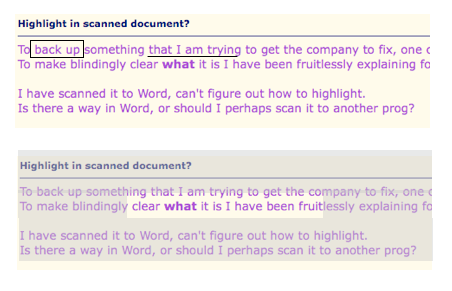
If you have scanned it as a picture (jpg or whatever) you could use Word's drawing tools to draw a box round the bit you want, or underline it by actually drawing a line under the text you want. The box could be filled with a translucent colour or maybe you draw translucent-filled boxes around the bit you want, leaving that bit clear.
Joined: Oct 2007
Posts: 448
Likes: 0
From: Norfolk U.K.
The other possibility is to use OCR (Optical Character Recognition) software to convert it to a real text document. I got one such programme bundled with a Canon scanner, might be worth searching for one.
Joined: Jul 2000
Posts: 1,535
Likes: 13
From: UK
A couple of possible snags with OCR are that it is tricky to get lists formatted correctly, and anything 'editable' is not a great piece of evidence as it is, well, editable. A 'copy' may be more appropriate?
Thread Starter
Joined: Oct 2006
Posts: 251
Likes: 0
From: Europe
Thank you for answering chaps.
Westie, I also have that tool, only it doesn't work for a scanned document.
Background Noise, your idea sounds very promising.
But whatever I try to do, I don't see where in Word's drawing tools I can find the tool to underline or draw a box around segments of the scanned document.
... using both my own and you guys' valuable time to try and get a crazy @rsed passenger banned for life ... good cause
Westie, I also have that tool, only it doesn't work for a scanned document.
Background Noise, your idea sounds very promising.
But whatever I try to do, I don't see where in Word's drawing tools I can find the tool to underline or draw a box around segments of the scanned document.
... using both my own and you guys' valuable time to try and get a crazy @rsed passenger banned for life ... good cause
Official PPRuNe Chaplain
Joined: Apr 2001
Posts: 3,498
Likes: 0
From: Witnesham, Suffolk
The "highlighter" function in Word only works on text.
If you're looking at a picture/scan of a document, then you need to do your "highlighting" with a graphics package. I use Paint Shop Pro, which will do the job fine. I'm sure most others will, too.
Dunno about MS Paint - not used it.
If you're looking at a picture/scan of a document, then you need to do your "highlighting" with a graphics package. I use Paint Shop Pro, which will do the job fine. I'm sure most others will, too.
Dunno about MS Paint - not used it.
Joined: Jul 2000
Posts: 1,535
Likes: 13
From: UK
Its like my post doesn't exist. It was all done, as I explained, in Word.
Juud, click View, toolbars and select 'drawing'. Then you have access to lines, shapes etc. Boxes need to be unfilled, and there are problems with layout, but it is possible.
Juud, click View, toolbars and select 'drawing'. Then you have access to lines, shapes etc. Boxes need to be unfilled, and there are problems with layout, but it is possible.
Administrator
Joined: Mar 2001
Aviation Qualifications: PPL
Posts: 8,121
Likes: 686
From: Twickenham, home of rugby
To elaborate on Background Noise's suggestion:
The way to highlight an area in a picture (a scanned image is a picture) in Word is to Insert the picture into a Word document, then open the Drawing toolbar, select the Rectangle tool, create the rectangle of the appropriate size and aspect, then apply a Fill of about 80% transparency in an appropriate colour to the new rectangle.
Then simply drag the rectangle to the correct position - tweaking as required to fine-tune the fit.
Obviously this works for all the tools and formats supported in the Drawing Toolbar - lines, shapes, arrows etc.
SD
The way to highlight an area in a picture (a scanned image is a picture) in Word is to Insert the picture into a Word document, then open the Drawing toolbar, select the Rectangle tool, create the rectangle of the appropriate size and aspect, then apply a Fill of about 80% transparency in an appropriate colour to the new rectangle.
Then simply drag the rectangle to the correct position - tweaking as required to fine-tune the fit.
Obviously this works for all the tools and formats supported in the Drawing Toolbar - lines, shapes, arrows etc.
SD
Joined: Apr 2008
Posts: 565
Likes: 21
From: Passed away on Sept 6th
Judd - what I do with a scanned document is to produce a text box. In Word (don't bother about the drawing tools) <Insert> <Text box>. You will then get an "Insert picture here" box which completely screws up your document... but don't worry, it'll be sorted.
Draw your text box inside the "Insert pic here" bit, then - here's the clever bit (well, I think so, anyway) - drag your newly-created text box somewhere else on the page. Then click on the original big box and hit delete. You've now got your original document back, with your lovely new text box obscuring a bit of the page.
All you have to do now, is to move your box to the required position, and right click on the margin of the box then select Format Text Box, which allows you to colour and determine its transparency. e.g. yellow and 50%. And there you are, done.
Sounds fearfully complicated, but, honest guv, it's easy: I use this a couple of times a week for annotating scanned stuff.
Hope this helps.
Jim
Draw your text box inside the "Insert pic here" bit, then - here's the clever bit (well, I think so, anyway) - drag your newly-created text box somewhere else on the page. Then click on the original big box and hit delete. You've now got your original document back, with your lovely new text box obscuring a bit of the page.
All you have to do now, is to move your box to the required position, and right click on the margin of the box then select Format Text Box, which allows you to colour and determine its transparency. e.g. yellow and 50%. And there you are, done.
Sounds fearfully complicated, but, honest guv, it's easy: I use this a couple of times a week for annotating scanned stuff.
Hope this helps.
Jim


Joined: Mar 2002
Aviation Qualifications: CPL
Posts: 3,394
Likes: 326
From: near an aeroplane
Jim, you might be able to skip a step in that process by going into 'Tools' - 'Options' - 'General' tab and untick the last one above 'units' (Automatically insert drawing canvas when inserting autoshapes, or something to that effect). One of the first things I do in a Word installation
Thread Starter
Joined: Oct 2006
Posts: 251
Likes: 0
From: Europe
I feel particularly stupid, but thanks to your patient guidance my PIL is now tastefully and transparently highlighted in the appropriate places and since I am rather better with words than with with PCs, I am confident that the combined PIL and In Flight Report will make sure that never again will the individual in question cause a 747 to abort its take off from one of the world's busiest airports.
Gentlemen:
Gentlemen:
Last edited by Juud; 4th November 2008 at 11:04.
Joined: Apr 2008
Posts: 565
Likes: 21
From: Passed away on Sept 6th
Jhieminga - thanks for "Jim, you might be able to skip a step in that process by going into 'Tools' - 'Options' - 'General' tab and untick the last one above" I hadn't come across that one. y'learn summat noo every day.
As for all the other useful contributions: Arrange the following into a well-known proverb "cat than way one more there's to a skin"
Nice ere, innit?
Jim
As for all the other useful contributions: Arrange the following into a well-known proverb "cat than way one more there's to a skin"
Nice ere, innit?
Jim


