


Win 10 & 11 "Go to Sleep" NEVER

Thread Starter
Joined: Mar 2023
Posts: 65
Likes: 32
From: sydney
Win 10 & 11 "Go to Sleep" NEVER
For my laptops (plural) it's not working now - but used to. "Power Toys AWAKE" (latest version) will not work either. Screen will blank out but plugged-in powered machines simply go to sleep = even though sitting on a quad-fan cradle (which used to be sufficient to preclude over-heating)
Anybody have any solutions? Nothing that I've googled will work. Settings for machine sleep are as per what always used to work (i.e. "NEVER")
Screen blanking seems to be unaffected.
Anybody have any solutions? Nothing that I've googled will work. Settings for machine sleep are as per what always used to work (i.e. "NEVER")
Screen blanking seems to be unaffected.


Joined: Jan 2008
Posts: 315
Likes: 57
From: LONDON
For my laptops (plural) it's not working now - but used to. "Power Toys AWAKE" (latest version) will not work either. Screen will blank out but plugged-in powered machines simply go to sleep = even though sitting on a quad-fan cradle (which used to be sufficient to preclude over-heating)
Anybody have any solutions? Nothing that I've googled will work. Settings for machine sleep are as per what always used to work (i.e. "NEVER")
Screen blanking seems to be unaffected.
Anybody have any solutions? Nothing that I've googled will work. Settings for machine sleep are as per what always used to work (i.e. "NEVER")
Screen blanking seems to be unaffected.

But I can't remember if I've ever tried to leave them running for more than 12 hours or so before I turn them off. How long is it before yours go to sleep?
I have an 'always on' Desktop running Windows 11 and that never goes to sleep. I did have problems with Windows Update rebooting it in the middle of the night though.
Any chance your laptops have some manufacturer's power management software running?
Thread Starter
Joined: Mar 2023
Posts: 65
Likes: 32
From: sydney
Sleepy Laptops
I have both Win11 and Win10 laptops and all sit on quad-fan cradles to stop overheating. Some update has since knocked out the "Go to sleep NEVER" functionality when plugged in. The Power Toys Awake option was supposed to overcome this - but doesn't. The laptops are used for EA (Robot) trading, so it is important that they stay up and running. It's going on for six months that this annoyance is going on. Balanced doen't achieve nything to turn this around. They seem to shut down (i.e. go to sleep) after around 60 minutes
Joined: Jan 2008
Posts: 315
Likes: 57
From: LONDON
I have both Win11 and Win10 laptops and all sit on quad-fan cradles to stop overheating. Some update has since knocked out the "Go to sleep NEVER" functionality when plugged in. The Power Toys Awake option was supposed to overcome this - but doesn't. The laptops are used for EA (Robot) trading, so it is important that they stay up and running. It's going on for six months that this annoyance is going on. Balanced doen't achieve nything to turn this around. They seem to shut down (i.e. go to sleep) after around 60 minutes
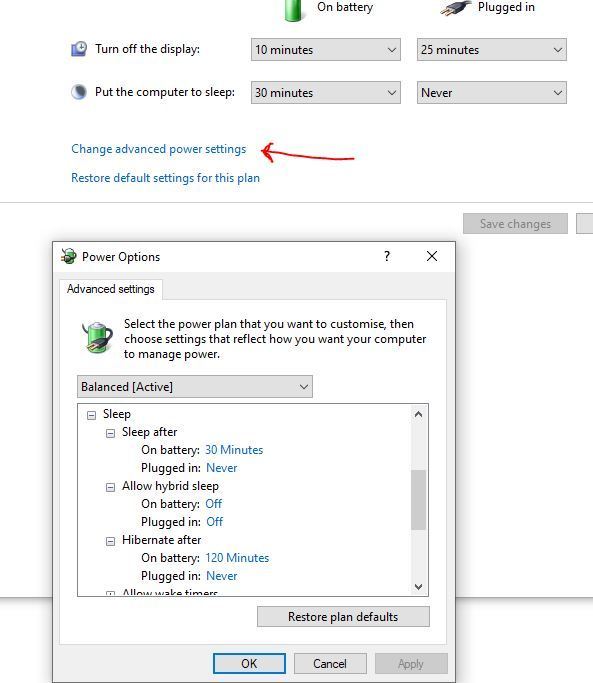
..and you could look in the Windows Event Viewer logs to see if there's a clue in there about what's triggering the shutdown.
I think in your shoes I'd consider removing 'Power Toys'. As you say, it's not working anymore and sometimes these addons don't keep up with changes to Windows and can confuse the issue. Then I'd reset one of the power plans back to its default settings and reconfigure it to 'Never' shutdown or hibernate under both battery and plugged-in states.
Good Luck
Thread Starter
Joined: Mar 2023
Posts: 65
Likes: 32
From: sydney
Thanks Netstruggler
I did discover a previously unknown setting had been changed by an update and I guess I shall see whether it's the culprit. Meanwhile the following link may be useful to anybody suffering from the same Windows 10/11 malaise. Under Systems>Power and battery. system recommendations> at the bottom of the list you will see a contrarian setting of "Put my system to sleep after 10 minutes" This can be changed to "NEVER" by motoring to the bottom of a long list. It obviously overrides the basic setting (found Static elsewhere) of "NEVER" (on sleep). Microsoft needs to get their excrement in one pile. So much for Win 11 - need now to check Win10
The more complex link. I found Event Viewer to be too intricate to navigate for a novitiate of only 30 years of Windows.
https://tinyurl.com/2wcjuedz
None of my ancient laptops will hibernate. There is no provision for doing so. I inherit my hardware from my son who abandons his gear as soon as something new rears its head.
I did discover a previously unknown setting had been changed by an update and I guess I shall see whether it's the culprit. Meanwhile the following link may be useful to anybody suffering from the same Windows 10/11 malaise. Under Systems>Power and battery. system recommendations> at the bottom of the list you will see a contrarian setting of "Put my system to sleep after 10 minutes" This can be changed to "NEVER" by motoring to the bottom of a long list. It obviously overrides the basic setting (found Static elsewhere) of "NEVER" (on sleep). Microsoft needs to get their excrement in one pile. So much for Win 11 - need now to check Win10
The more complex link. I found Event Viewer to be too intricate to navigate for a novitiate of only 30 years of Windows.
https://tinyurl.com/2wcjuedz
None of my ancient laptops will hibernate. There is no provision for doing so. I inherit my hardware from my son who abandons his gear as soon as something new rears its head.
Thread Starter
Joined: Mar 2023
Posts: 65
Likes: 32
From: sydney
It ain't my DEFAULT
An Update on an impossibility
After exhaustive trials over a number of laptops I have established the following tech imbroglio as being an immutable fact of Microsoft life
1. Settings / system / <Power and Battery> leads you to a page which has a rather large garish and colorful battery-level indicator atop it.
2. The first entry is <Power Recommendations>
3. The 2nd entry is labelled <Screen and Sleep>
4. within that 2nd entry there are various selectable time intervals that have defaulted to a minimalized four sections. Two of them are the battery powered options for "screen OFF" or SLEEP (screen default OFF being 3 mins & 5 minutes) The remaining two contain the "when plugged in" options ( for screen Off and SLEEP). These two sub-sections contain a multiplicity of choices. Unfortunately whichever option (including the desired 16 'go to SLEEP' options [concluding with an ever hopeful "NEVER" ] will reliably revert to the shown very time-limited power-friendly default-set's DEFAULTS as soon as you exit "Settings". Programmer has failed to incorporate any SAVE option on that page.
So you can thereby accomplish nothing by way of a selected change,
Why because?, As with the infamous Hotel California Lyric:
"We are programmed to "receive"
You can check out any time you like, but you can never leave"
After exhaustive trials over a number of laptops I have established the following tech imbroglio as being an immutable fact of Microsoft life
1. Settings / system / <Power and Battery> leads you to a page which has a rather large garish and colorful battery-level indicator atop it.
2. The first entry is <Power Recommendations>
3. The 2nd entry is labelled <Screen and Sleep>
4. within that 2nd entry there are various selectable time intervals that have defaulted to a minimalized four sections. Two of them are the battery powered options for "screen OFF" or SLEEP (screen default OFF being 3 mins & 5 minutes) The remaining two contain the "when plugged in" options ( for screen Off and SLEEP). These two sub-sections contain a multiplicity of choices. Unfortunately whichever option (including the desired 16 'go to SLEEP' options [concluding with an ever hopeful "NEVER" ] will reliably revert to the shown very time-limited power-friendly default-set's DEFAULTS as soon as you exit "Settings". Programmer has failed to incorporate any SAVE option on that page.
So you can thereby accomplish nothing by way of a selected change,
Why because?, As with the infamous Hotel California Lyric:
"We are programmed to "receive"
You can check out any time you like, but you can never leave"
Last edited by bbofh; 18th November 2024 at 23:30. Reason: incorporated a sense of frustrating perpetuality (a thinly disguised Microsoft enforced limitations on choice)
Joined: Oct 2007
Posts: 1,003
Likes: 16
From: Here
Any experienced Windows Support person should be able to look at this.
You can find out what triggered the sleep in the event log. Use the Event Viewer app. The log you need to look in is Windows-Logs/System.
It may be VERY BIG. If so it will take many seconds to come up. I never bother to delete it. Go and make a cup of tea.
Open a second copy of the event viewer and if possible put it on another screen.
In first copy, Filter on event ID 42. This will let you find the exact sleep times.
Then look in the other copy at the times that the event 42 occurred. This is the event "The system is entering sleep" but may have various "reasons".
In my case I find that shortly before the 42 event, event 524 occurred, Critical Battery Trigger met.
You just have to look around the time of the 42 event to inspect what has been going on and identify likely items of interest.
To set the filter choose "Filter current log" on the right hand side. Enter your ID's in the middle where indicated. to remove the filter choose "Clear filter". DO NOT CHOOSE "Clear LOG".
It's good idea to make a note of relevant IDs so that you can filter on them again if you have to come back to it. Be careful though you still need to look at the unfiltered log to make sure you are not missing something you have not seen previously.

You can find out what triggered the sleep in the event log. Use the Event Viewer app. The log you need to look in is Windows-Logs/System.
It may be VERY BIG. If so it will take many seconds to come up. I never bother to delete it. Go and make a cup of tea.
Open a second copy of the event viewer and if possible put it on another screen.
In first copy, Filter on event ID 42. This will let you find the exact sleep times.
Then look in the other copy at the times that the event 42 occurred. This is the event "The system is entering sleep" but may have various "reasons".
In my case I find that shortly before the 42 event, event 524 occurred, Critical Battery Trigger met.
You just have to look around the time of the 42 event to inspect what has been going on and identify likely items of interest.
To set the filter choose "Filter current log" on the right hand side. Enter your ID's in the middle where indicated. to remove the filter choose "Clear filter". DO NOT CHOOSE "Clear LOG".
It's good idea to make a note of relevant IDs so that you can filter on them again if you have to come back to it. Be careful though you still need to look at the unfiltered log to make sure you are not missing something you have not seen previously.
Last edited by jimjim1; 22nd November 2024 at 10:36.
Thread Starter
Joined: Mar 2023
Posts: 65
Likes: 32
From: sydney
jimjim1
Followed your advice above. The issues turned out to be Kernel issue for sleep (with a few instances of "application API") and "Kernel Power" for resume (which was anyways always a manual exit from sleep mode). It confusingly now and again made a reference to hibernation (not possible on a Dell 7480 laptop). However it happens on most of my laptops (which are admittedly a bit aged), that they go and sleep whilst on a SLEEP NEVER schedule. The Powertoys AWAKE setting is useless and WINTOYS has no such option. Very Frustrating.
Followed your advice above. The issues turned out to be Kernel issue for sleep (with a few instances of "application API") and "Kernel Power" for resume (which was anyways always a manual exit from sleep mode). It confusingly now and again made a reference to hibernation (not possible on a Dell 7480 laptop). However it happens on most of my laptops (which are admittedly a bit aged), that they go and sleep whilst on a SLEEP NEVER schedule. The Powertoys AWAKE setting is useless and WINTOYS has no such option. Very Frustrating.
Ecce Homo! Loquitur...

Joined: Jul 2000
Aviation Qualifications: Spotter
Posts: 24,619
Likes: 7,321
From: Peripatetic

Thread Starter
Joined: Mar 2023
Posts: 65
Likes: 32
From: sydney
Hubridity and sleepiness
I am suspecting that it's the HYBRID sleep innovation that has much to do with it. Elsewhere I see that if you open a new email (as if to send), the laptop will remain non-sleepy. Must try that.
